
Built-in accessibility features on phones, tablets and computers
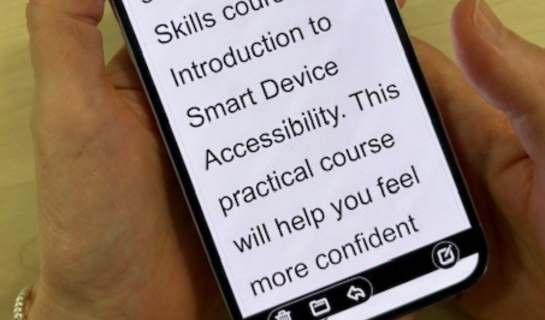
Most modern phones, tablets and computers include built-in accessibility features that can make everyday tasks easier for blind and partially sighted people. These features are already part of the device, so there is often no need to buy extra software to try them.
This page gives an overview of some of the most commonly used built-in features and how they can help in daily life.
What does “built-in accessibility” mean?
Built-in accessibility features are tools that come as standard with your device. They are usually found in the settings under Accessibility or Ease of Access.
These features can help with reading text, navigating the screen, using voice commands, and reducing visual strain. Many people use a combination of features rather than relying on just one.
Text-to-speech and screen readers
Most smartphones, tablets and computers can read information aloud, but there are different types of tools depending on what you need.
Text-to-speech features can read selected text, such as emails, messages, documents or web pages. These can be helpful if you have some usable vision but find reading on a screen tiring.
Screen readers provide more detailed spoken feedback. They can read information across the whole device, including menus, buttons and apps, and are usually controlled using gestures or keyboard commands.
Screen readers are explained in more detail on our Screen readers page, but it’s helpful to know that many spoken accessibility features are already built into modern devices.
Magnification and zoom
Magnification allows you to make text, images and icons larger.
You can usually:
- zoom in on part of the screen using gestures or keyboard shortcuts
- magnify the whole screen
- adjust how much magnification is applied
Many people use magnification for short tasks such as reading messages or checking information, even if they do not need it all the time.
Text size, contrast and colour settings
Small changes to display settings can make a big difference.
Most devices allow you to:
- increase text size across the system
- bold text
- change colour contrast
- use dark mode or high contrast themes
For some people, these simple adjustments are enough to make a screen comfortable to use again.
Digital assistants and voice control
Phones, tablets and smart devices often include built-in digital assistants such as Siri, Google Assistant and Alexa.
These can help with everyday tasks such as:
- making phone calls or sending messages
- setting reminders or alarms
- checking the weather or news
- asking questions without using the screen
Digital assistants usually need an internet connection to work.
Voice control features can also allow some devices to be controlled by speaking commands rather than using the screen or keyboard.
Built-in accessibility on different devices
Most major operating systems include a wide range of accessibility features, although they may be named or organised differently.
Devices made by companies such as Apple, Microsoft and Android all include tools such as screen readers, magnification, contrast settings and voice control as standard.
You do not need to decide which system is “best”. What matters is finding something that feels manageable and suits what you want to do.
You don’t need to use everything
Not everyone needs or wants to use all accessibility features.
Some people only adjust text size. Others rely more on magnification or listening. Many people use different features at different times, depending on the task.
There is no right or wrong way to use accessibility tools.
Getting support
A Sight Loss Advisor is usually the first point of contact and can talk through everyday reading and accessibility options. If more specialist technology support would be helpful, they can refer you to our Digital Skills team.
Support is always based on what you want to do and what feels comfortable for you.
If you would like help exploring built-in accessibility features on your phone, tablet or computer, please contact us to find out what support is available.